
Adding a balance to territories allows users to assess if their territories are equally distributed to their sales teams based on overall territory sales values or contacts count. A geographic area balance differs from a regular balance as it is it is a static value associated with each or geographic area (e.g. ZIP), rather than an aggregate value based on points within the geographic area.
Adding the Balance
-
First ensure that your dataset has a column containing the values that you want to balance your territories on.
-
On the territory creation screen, choose the balance field from the dropdown in Step 4.
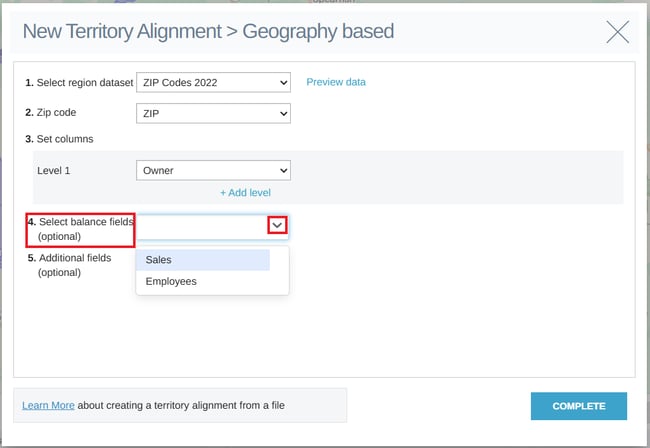
- Once the column has been chosen, click complete as usual to create your alignment
- Your alignment will be created with the chosen balance column applied and displayed in the Territories panel
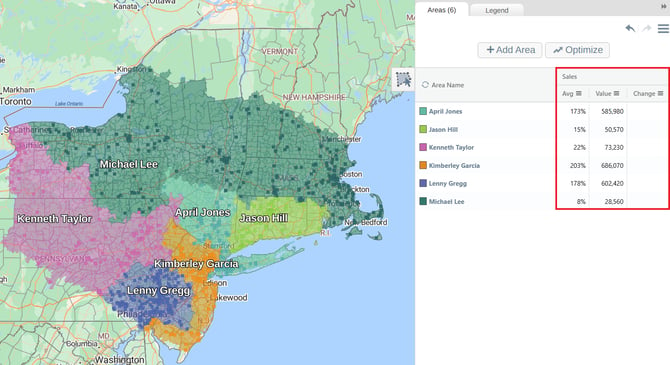
Additional balances can still be added using an accounts dataset, the steps to add and apply a balance like this can be found here:
Managing balances
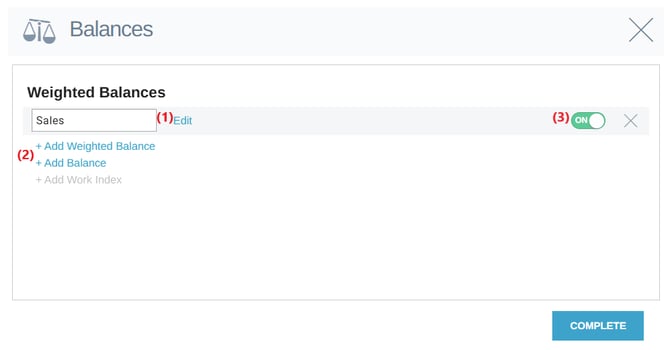
The balance menu can be accessed using the Hamburger In here you can:
(1) Edit the current balance,
(2) Add an extra balance (based on the geographic dataset, or an added accounts dataset), and
(3) Turn the balance on/off and remove it
Additional information on managing and interpreting balances can be found in the Managing Balances section of this article: