
Overview
TerritoryAssist provides data-driven summaries to support territory evaluation and decision-making. You can use TerritoryAssist to:
- Evaluate Territory Balance: Review how accounts, workload, revenue potential, or any custom balancing value you choose are distributed across your territories.
- Assess Territory Workability: Assess travel demands across territories, including estimated drive times, tour durations, and shape compactness.
- Identify Coverage Gaps: Highlights unassigned points/accounts, unallocated areas, and potential coverage gaps in your territories.
- Run Territory Deep Dives: Analyze a single territory in detail, including account counts, workload distribution, coverage,and travel estimates.
- Get Guided Next Steps: Receive suggested follow-up actions and step-by-step instructions from the eSpatial Help Center to walk you through making manual updates in the app.
Note : TerritoryAssist is an analytical assistant. It does not automatically edit boundaries or reassign accounts. All alignment changes are completed manually in eSpatial by the end user
Enabling Territory Assist
For Admin Users
If you are an eSpatial account administrator, there are two ways to enable TerritoryAssist for your organization:
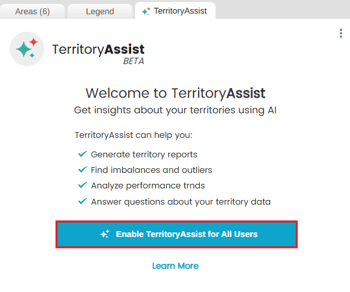
- (1) First-Time Setup Prompt: The first time you open the TerritoryAssist tab, you will be prompted with an option to enable TerritoryAssist for all users across your account.
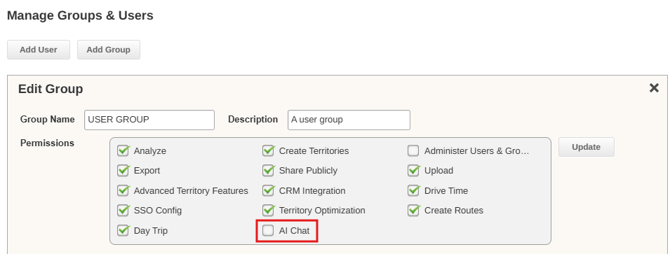
- (2) Group Permissions: Go to Manage Groups and Users to add the AI Chat permission to a current User Group, or set up a dedicated new group with AI Chat enabled and add the relevant users. Any user assigned to that User Group will then have to access TerritoryAssist.
For Non-Admin Users
-
Request Access: If you do not have admin permissions, opening the TerritoryAssist tab will give you the option to select Request Access. This sends an automated email to your eSpatial administrator asking them to enable the feature for you.
Note: Access to TerritoryAssist is managed through organizational permissions. If you do not see the TerritoryAssist tab in your Areas Panel, contact your eSpatial Administrator to ensure AI features are enabled for your user group.
If your administrator needs assistance, they can contact help@espatial.com or reach out via Live Chat within eSpatial.
How to Access TerritoryAssist
- (1) Open a territory in Territory Manager.
- (2) Locate the Areas Panel on the right side of your screen.
- (3) Select the TerritoryAssist tab at the top of the panel to open the assistant interface.

- (4) Start a conversation by choosing one of two options.
- Select a Preset Prompt: Click any of the pre-configured prompt buttons (such as Territory Report or Most Imbalanced) to instantly run a standard analysis.
- Type a Custom Question: Click inside the text box at the bottom of the panel, enter your query or task (for example: "Are any accounts unassigned?"), and press Enter or click the Send button.
Note: Access to TerritoryAssist is managed through organizational permissions. If you do not see the TerritoryAssist tab in your Areas Panel, contact your eSpatial Administrator to ensure AI features are enabled for your user role.
Preset Prompts & Menu Options
Preset Prompts
TerritoryAssist includes six preset prompts above the chat box for one-click analysis. Selecting a prompt runs an automated query on your territory alignment:
- Territory Report: Delivers a complete assessment of your territory structure.It summarizes balance criteria, unassigned accounts, and drivetime metrics so you can review overall alignment health and workload distribution.
- Territory Stats:Provides a figure-focused breakdown of your territories using structured comparison tables focused on account counts, balance values, tour times, and size across all active territories so you can easily evaluate territories side by side.
- Most Imbalanced: Highlights territories with the biggest imbalances based on the balance criteria that you have set. It will give you stats on any outliers and details on how they compare to the rest of your territories so you can quickly see who is over or under-allocated and determine if rebalancing is needed.
- Top Outliers: Highlights territories that require closer attention by classifying them based on workload, account density, and geographic spread making it easy for you to identify territories that are under or over capacity.
- Deep Dive: Provides an in-depth breakdown of a selected territory across workload, account density, and travel metrics, so you can review individual territory performance.
- Suggest a Feature: Opens a feedback window so you can submit feature ideas or product feedback directly to the eSpatial team. Territory Assist is in BETA and this is just the beginning. Send us your suggestions on what you would like to see from eSpatial and we will look into it for you.
Options Menu
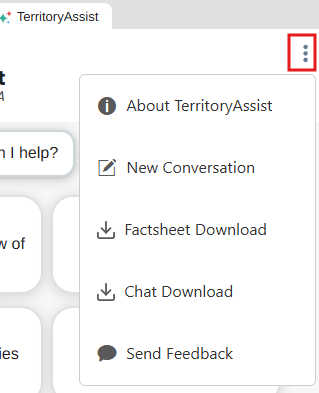
Select the More Options (three dots) icon in the top right corner of the TerritoryAssist panel to access the following tools:
-
About TerritoryAssist: Displays a summary of TerritoryAssist and its primary capabilities.
-
New Conversation: Clears the active conversation and starts a fresh one
-
Factsheet Download It provides a full deterministic summary of your data (without AI generation) including the territory scorecard, balance and coverage analysis, regional breakdowns, and per-territory workability statistics.
-
Chat Download:Downloads a full text transcript of your current TerritoryAssist conversation.
-
Send Feedback: Opens a message prompt allowing you to submit comments, questions, or product feedback directly to the eSpatial team.