Note: These limits apply to the whole account, so any/all users on the account may see the message and can follow the below steps.
Here are some steps you can take to de-clutter the account and delete any old or unused data:
Show Unused Datasets
-
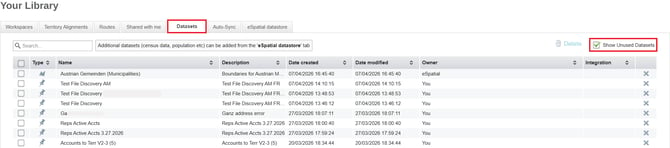
Go to the library and select the Datasets tab. Check on the Show Unused Datasets check box (depending the number of datasets, this list may take some time to generate).
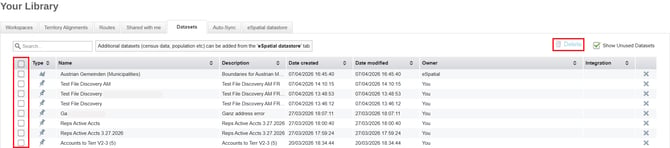
- Once this is complete, click on the top check box to select all of the datasets in the list. If you would rather select an individual dataset, click the checkbox beside it. Once you have chosen the datasets that you want to delete, click the Delete option.
Sort by date
- Go to the library and select the Datasets tab. Sort by Date modified. This will let you know the last time the dataset was edited. Once you decide the cut off date, click on the box beside the dataset to select it. Once you have done this, delete the selected datasets using the Delete option.
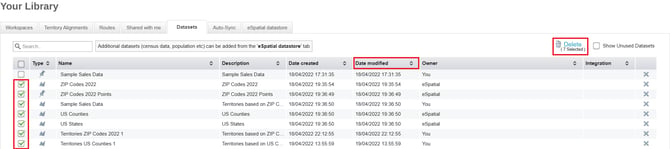
We would also recommend doing this with the Date created option if more space is needed.
- You may get a warning of a dependency if you try to delete a dataset owned by you that is present on a map (this could be a map in your user or shared with someone else). To delete the dataset, you’ll have to go to the map it’s on and remove the dependency from the map. If a dataset is shared with another user they cannot delete it - it can only be deleted by the owner.
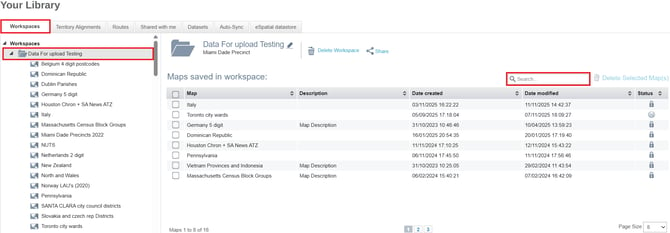
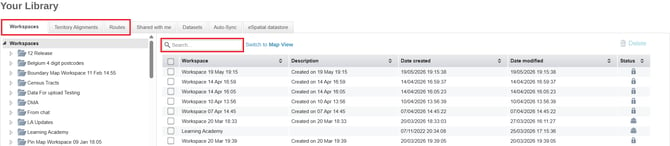
- Workspaces, Maps, Territories and Routes can also be deleted using the same instructions as above, by going to the relevant tabs. You will then see these as a list, or you can use the search bar to search by name.
-
Individual Maps can be found in the workspaces tab, within the workspace it has been saved in. Click on the workspace name to expand it. You can search for a map name from here, and delete using the previous instructions.